Media gallery
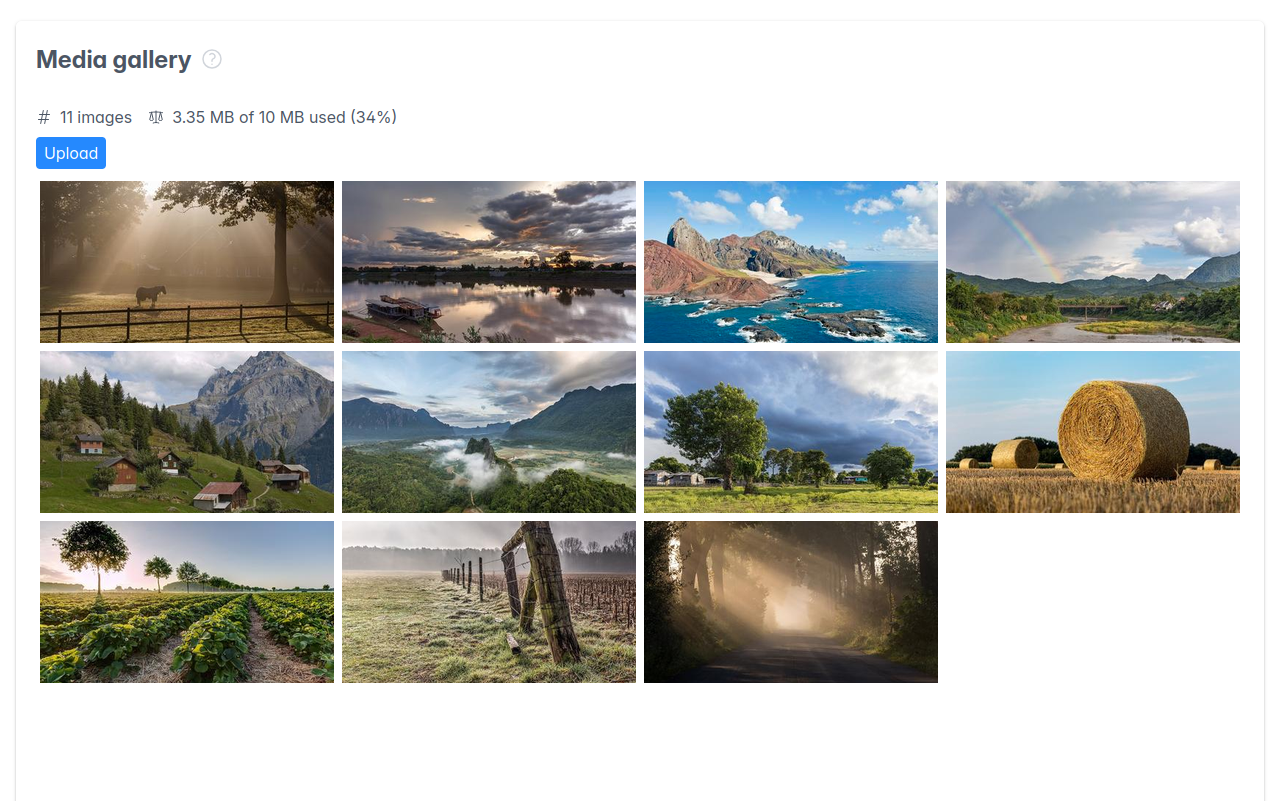
Use the gallery to upload pictures that you will use in the website builder. Over time, the media gallery will become the unified place to upload images.
At the top of the media gallery, the stats are displayed. Weddings are assigned a quota (default 10MB) to ensure a fair use fo the server resources. The stats show the number of images in the gallery, space used, and total quota assigned.
As an administrator, you can modify the quota of a wedding directly in the database (column media_galleries.quota) or via Rails console:
Wedding.find_by(slug: '<your-slug>').media_gallery.update(quota: 20 * 1024 * 1024) # 20MB
The value is stored in bytes.
After being uploaded, the system generates variants of the images (e.g., thumbnails) that take additional disk space but don't count for the quota.
Upload images
To upload images, click the Upload button displayed at the top. A dialog will appear with a panel to upload images:
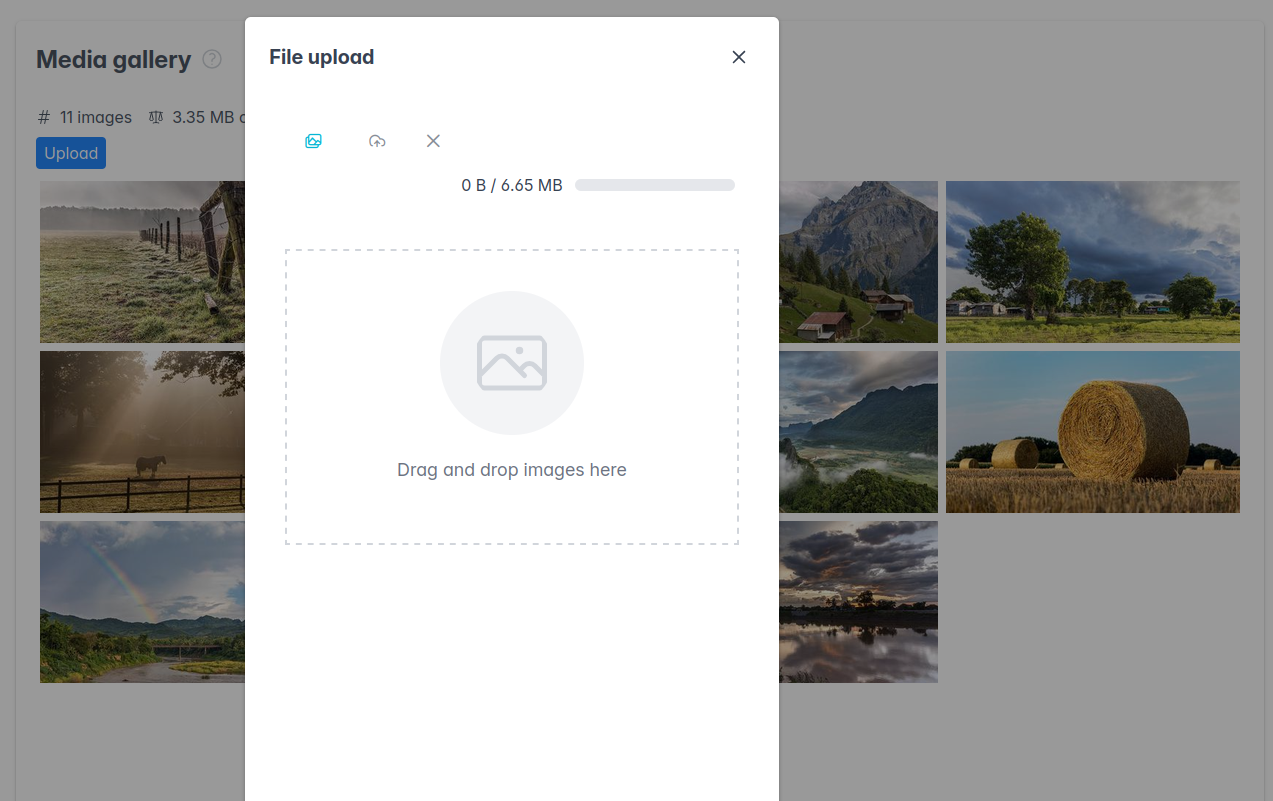 .
You can add images either by clicking on the leftmost icon of the upload widget, or by dragging and dropping images into the specified area:
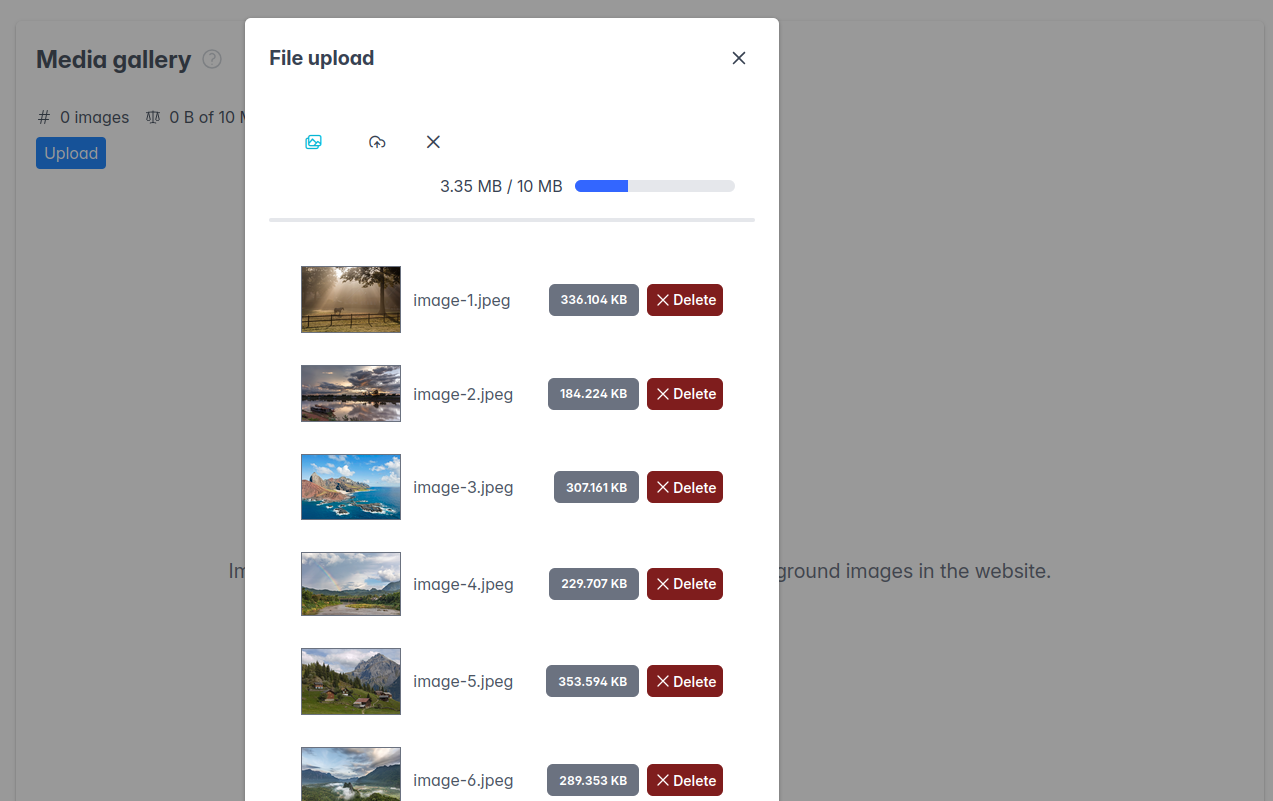 .
A progress bar will show the size of the files that are about to be uploaded compared to the quota.
Use the second icon in the widget header to upload the files. The dialog will close when the upload is completed.
Other actions
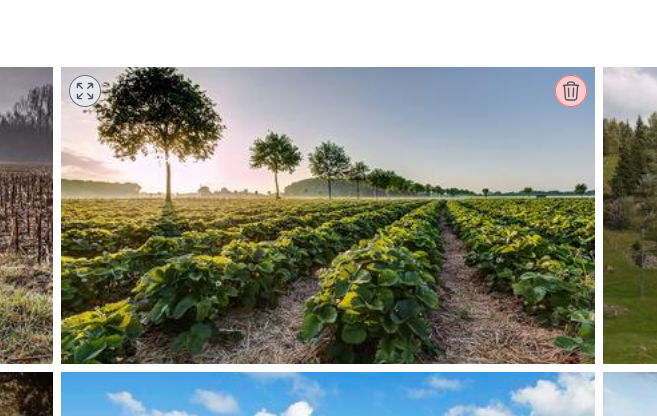 .
When you move your mouse over an image in the gallery, two icons will be displayed:
- The one in the left opens the full-size image in a new browser tab.
- The one in the right deletes the image from the gallery.