Guests
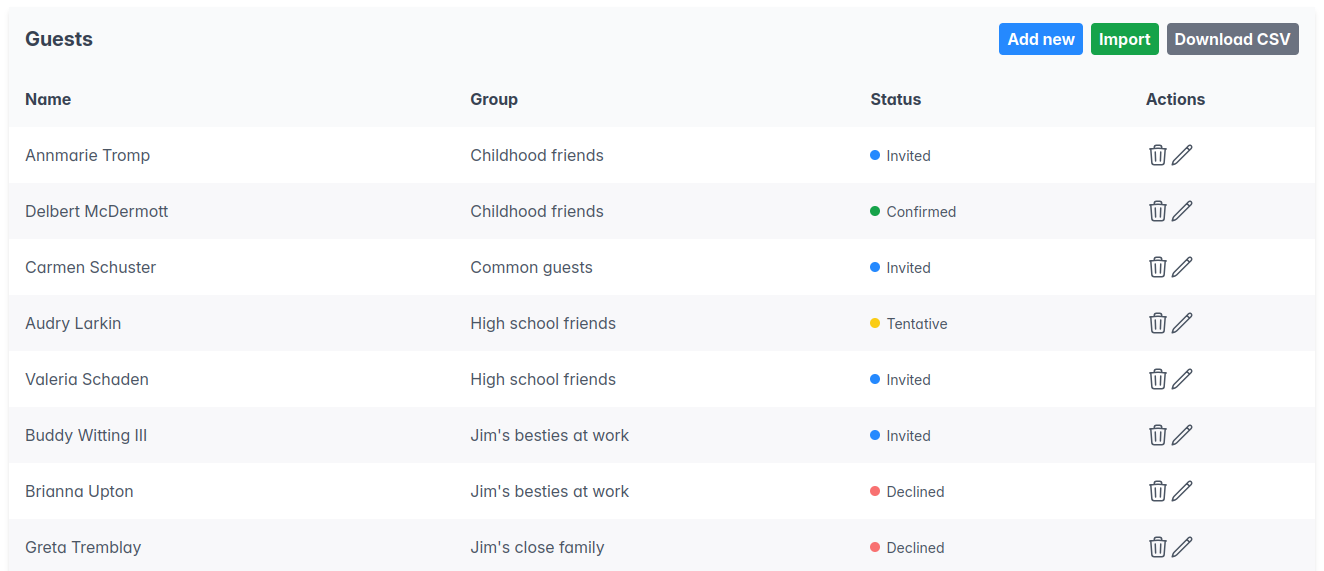
This page contains a table with the guest name, group, status, and a few actions that can be performed on the guest:
- Delete, which will completely remove the guest from the system.
- Edit, which will open a form to edit the guest.
In the top right corner there are three buttons:
- Add new allows the creation of a new guest.
- Import, described in the following section.
- Download CSV downloads a file in CSV format with all guest information (name, group, menu choices, restrictions, etc.).
Import
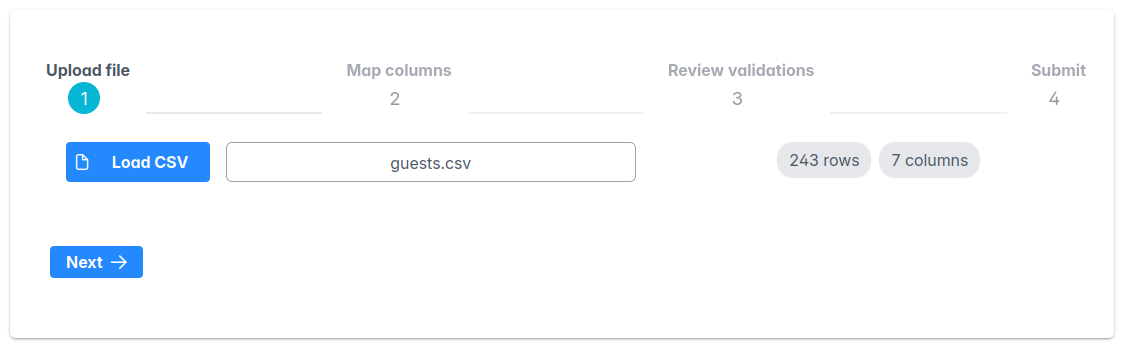
The guest import feature allows you to bring your guests and groups from a spreadsheet you may already have. First thing, you need to export it into CSV format and load it into LibreWeddingPlanner:
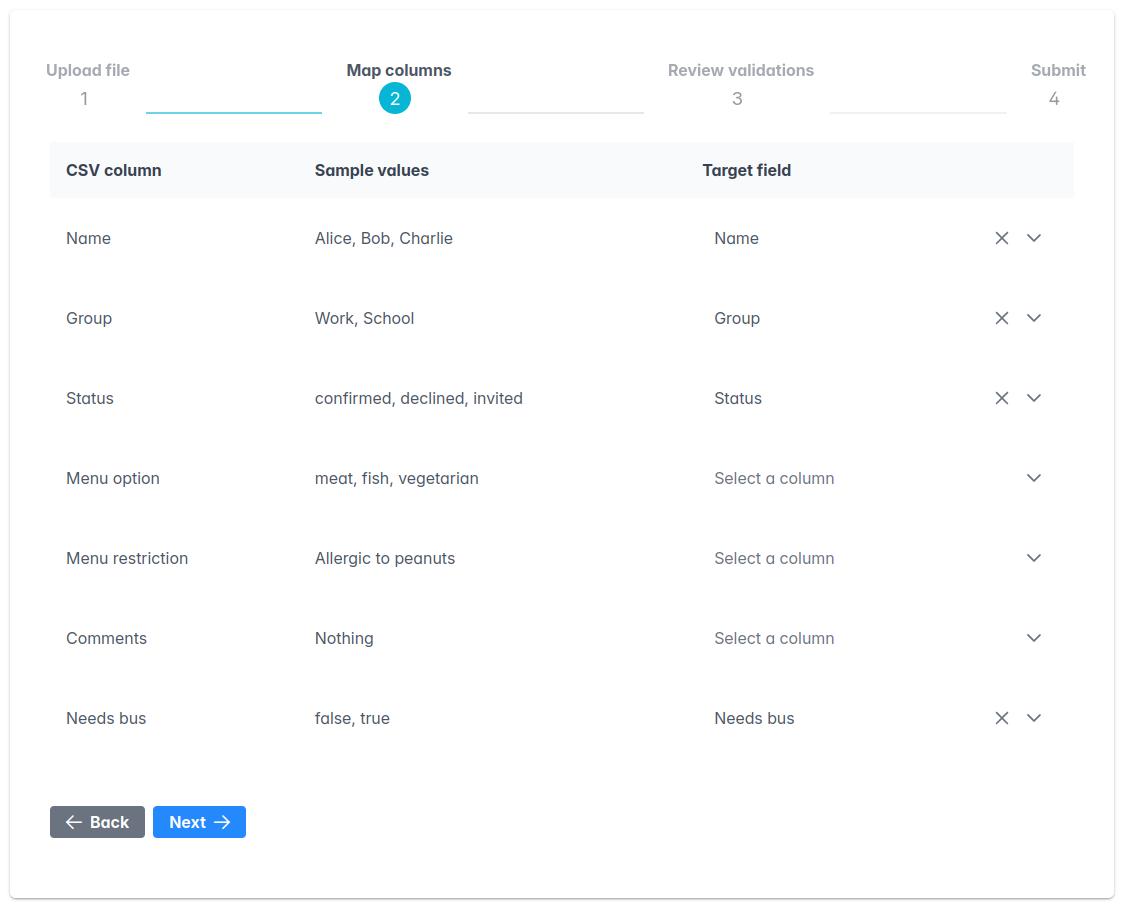
In the second step, you will have to map the columns in your CSV into the columns in LibreWeddingPlanner. The Sample values column shows a handful of values from the corresponding columns of the file uploaded. At the very least, one column needs to map into the Name column. The rest of the columns are optional. Columns not mapped will be ignored.
The third step shows validation errors, if any, along with the row number where they were found. Some of the errors that are checked include:
- Guests without a name - this file is required
- Statuses, menu options, or needs bus flag (true, false) values not supported.
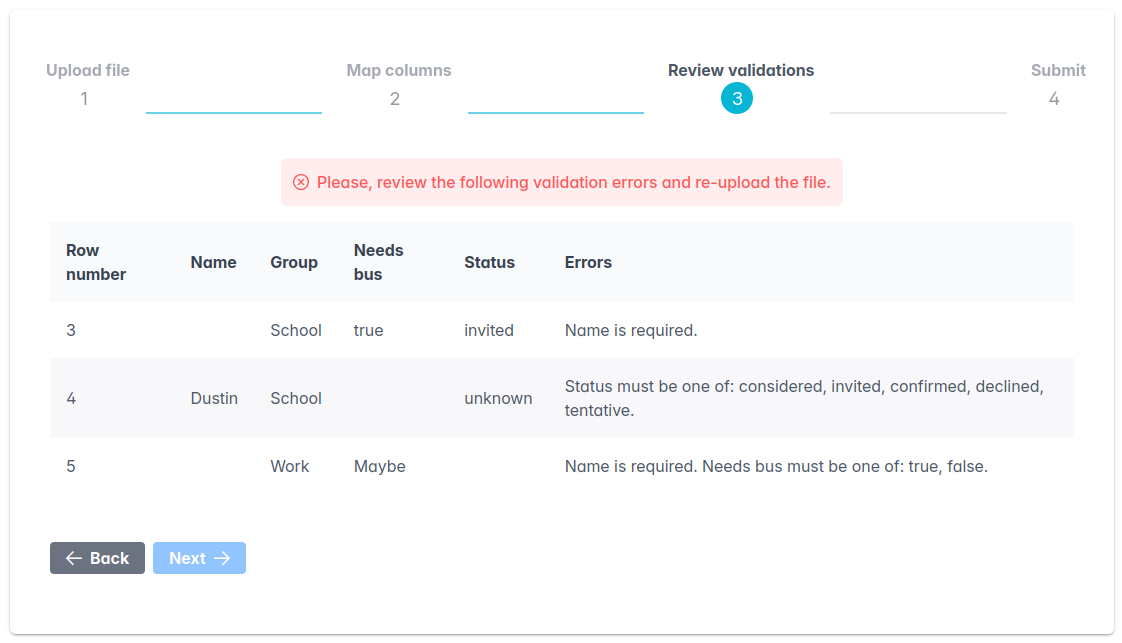
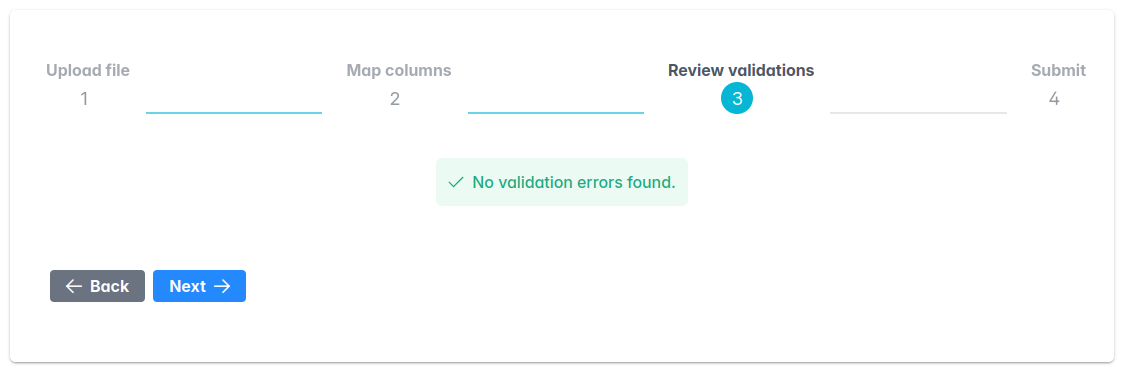
Upon fixing the errors in your computer, click on the Back button twice to re-upload the file and re-map the columns.You should see a success message:
In the last step before the actual uplaod, you'll choose whether you want to clear the existing guests and groups and start over, or you want to preserve existing data and add new guests and groups to the list. If you choose to clear existing guests, they will be gone for good, so please think twice.
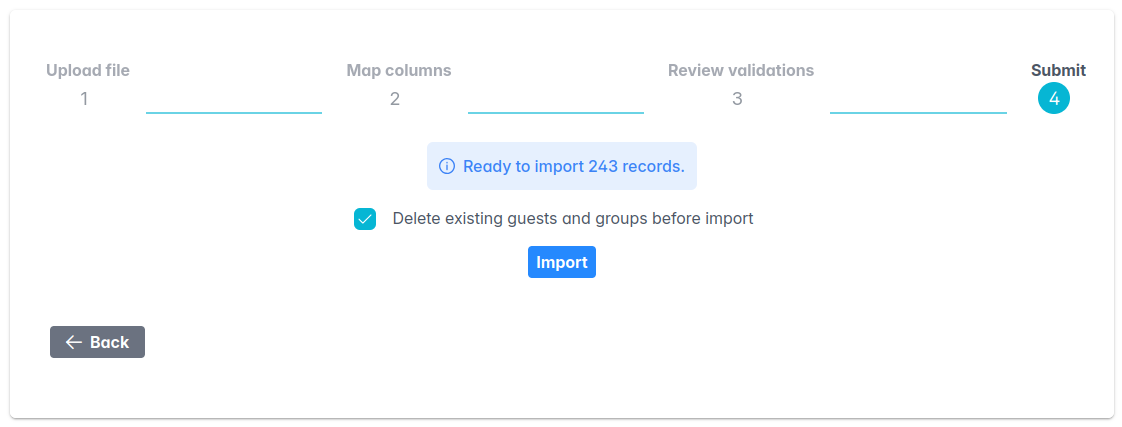
After clicking on Import, you will be redirected to the guests page where all guests should be loaded.