Website builder
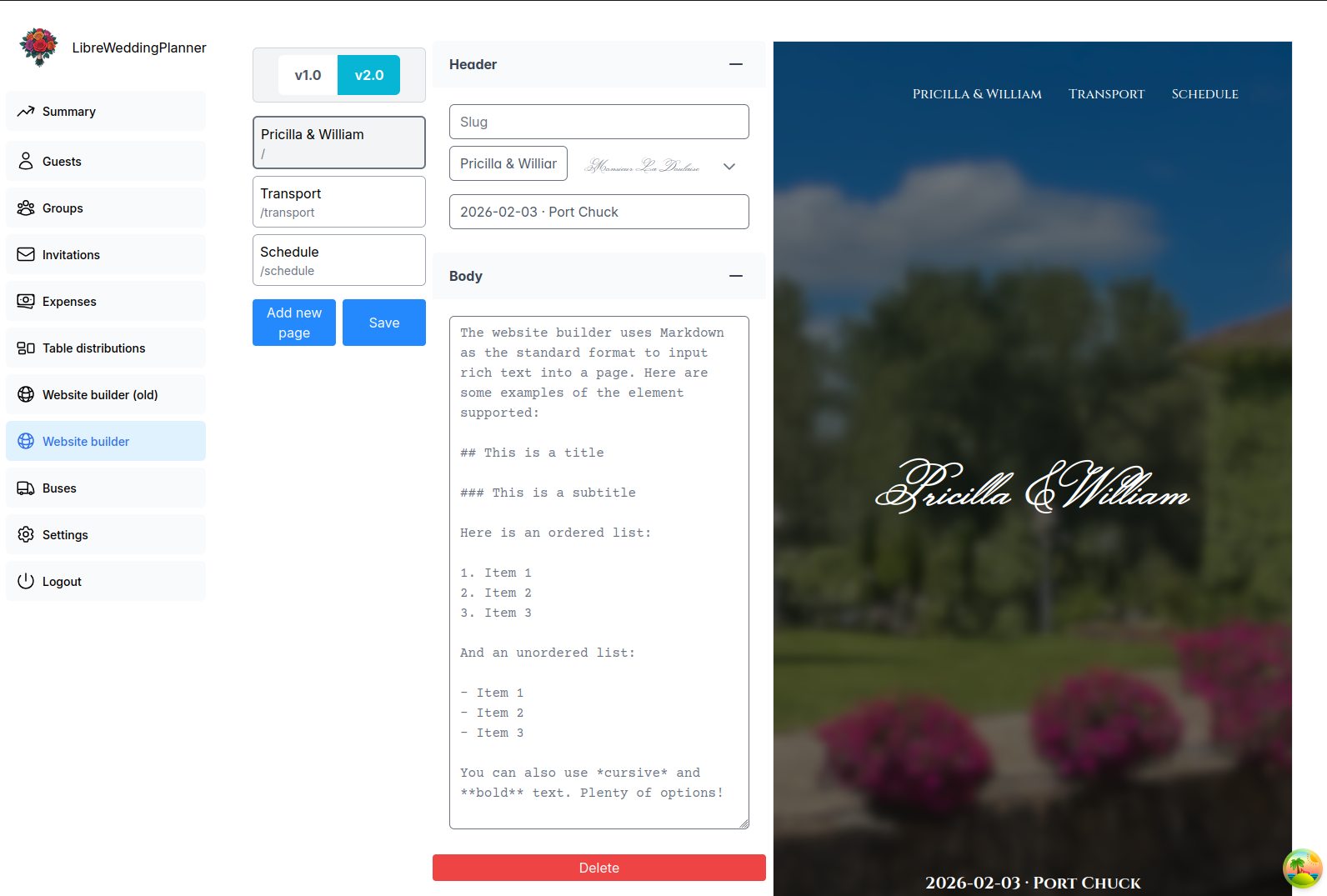
The previous version of the website builder (named v1.0) has been deprecated in favor of v2.0. We encourage weddings still using the old version to migrate to the new one, as the old one will be removed in upcoming releases.
In this section, you can create a website with additional information about the wedding. The section is split into three columns:
Version selector & page list
At the top of this colum you will find a selector that lets you choose between the old version, v1.0, and the new one, v2.0. All new users have the new version enabled by default. Clicking on either button will activate the old version of the website (still editable through the Website builder (old) menu option) or the new one (accessible through the regular Website builder menu option).
Below the version selector panel, you will find a list with the pages that make your website. Each page will be identified by its title and slug (any). At the bottom of this section we can find buttons to add a new page and save the current progress.
Each page automatically generates an entry in the menu. Keep in mind that the website will not be saved until the Save button is clicked! Be mindful that this website is public, so we recommend that you don't include any sensitive information in it.
Page editor
In this section we can edit different pieces of information:
- Slug: the part that will be displayed after the
/sitesegment of your website. One of the pages (usually the first one) should have an empty slug, becoming the root of the website. Duplicate slugs are not allowed, as otherwise it would not be possible to determine which page is being accessed. - Title: The title that will be displayed inside the header.
- Subtitle: An optional piece of information that is displayed at the very bottom of the header. In the screenshot above, it's used to display the wedding date and city.
- Font family: We can choose the font family used for the title.
- Body: The actual content of the page. It uses the Markdown format, which provides a simple way to define headings, bold, italic, lists, separators, and other common components for web pages. If the body is not provided, the header will use the full height of the page.
A Delete button at the bottom allows deleting the page. Remember that the page is not truly saved until the changes are saved using the Save button.
Preview
The last panel displays a preview of the selected page as it would be rendered in your website. The content (title, pages, body, etc.) is automatically updated as you edit the page.