Groups
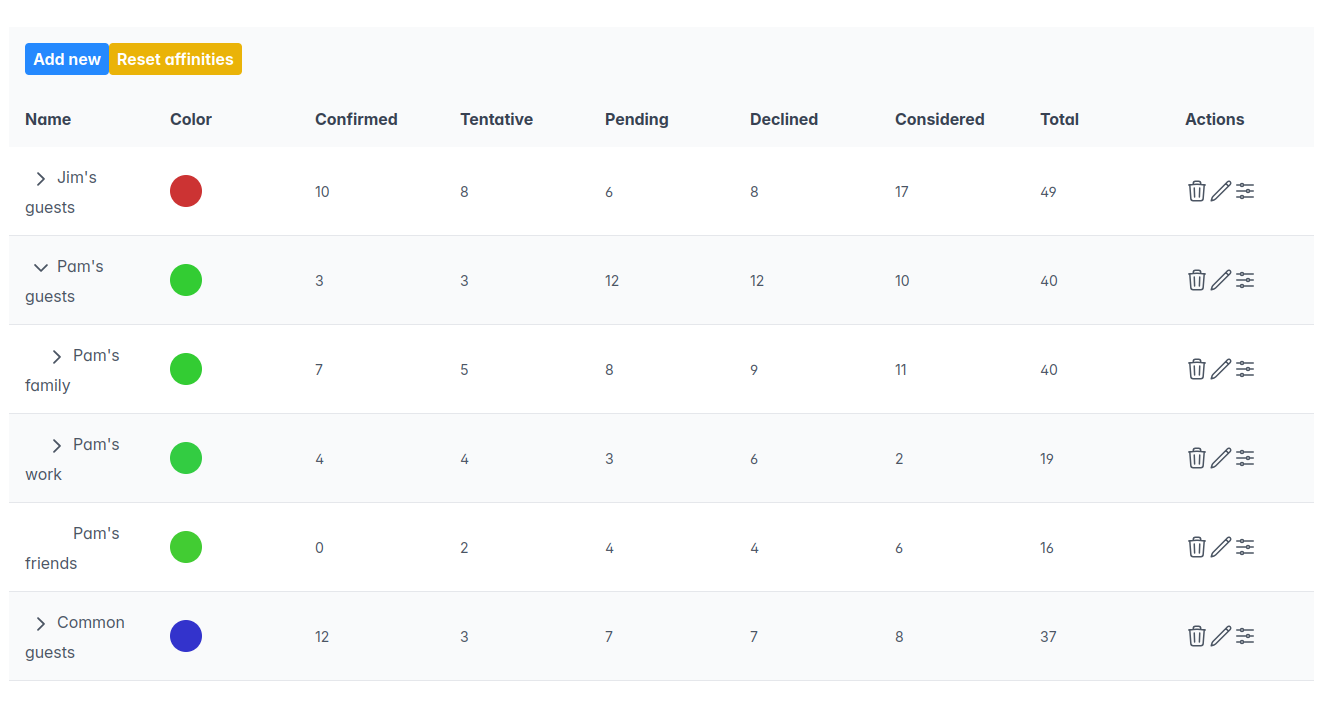
This page displays a tree-like table with information about groups. When a group contains subgroups, the table can be expanded to show the subgroups.
The color column is used to color the names of the guests in the table distributions page. Use similar colors for groups that are closely related, which will help you better understand which tables are mixing people that belong to groups that are too unrelated.
The rest of the columns (confirmed, tentative, pending, declined, considered, total) display an aggregated count of the guest in the group itself and all subgroups.
The Actions column can be used to modify the group details, including adding remove it altogether, or edit its affinity with other groups.
Affinities
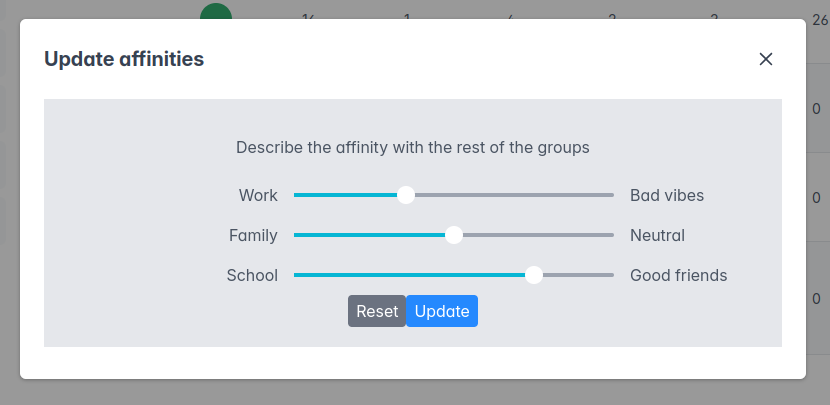
The affinities action in the table allows configuring the affinity of a group with other groups. This information, which will not be shown to the guests, will be used by the simulations engine to find the best possible distribution of guests. You can tweak this configuration, for example, to prevent conflicting groups from sitting on the same table, or to make sure subgroups of a bigger group are more likely to share table than completely unrelated groups.
The Reset button in the modal will restore the default affinity configuration for this group. The Reset affinities button in at the top of the page will restore the default affinity configuration for all groups. The default affinity is calculated based on the distance of the groups in the tree of groups: unrelated groups (like Work and Family in this example) will have a neutral affinity, whereas School and School besties will have a higher affinity by default.
This is not the only parameter of the simulations engine, but it plays a big role, so make sure you configure it carefully.